Showing posts with label #9p3 2014/15. Show all posts

Wednesday, 23 September 2015

#9p3 Changing Worlds - Track Your Progress

Lesson Objectives 
LO1 - To be able to track your own progress
LO2 - To be able to develop your Changing Worlds coursework

Outcomes
Red - You will update the progress tracker so I can be aware of your progress
Amber - You will have ensured all work is linked to your eportfolio
Green - You will have tested your game and recorded the results in your development log

Starter
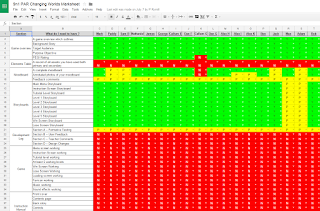


Take a look at the Changing Worlds progress tracker (click on the image above) and update me throughout the lesson by adding comments to your sheet

Main

RED TASK
  • Use Adobe Dreamweaver Make sure that all of the work that you have done so far is linked to your eportfolio

AMBER TASK

  • Make sure all parts of your game are completed:
    • Menu screen working 
    • Instruction Screen working 
    • Tutorial level working 
    • At least 5 working levels 
    • Win Screen Working 
    • Lose Screen Working 
    • Loading screen working 
    • Favicon working 
    • Music working 
    • Sound effects working

GREEN TASK

  • Make sure that all of your game documentation is up to date:
    • Section A – Formative Testing 
    • Section B – User Feedback 
    • Section C – Teacher Comments 
    • Section D – Design Changes
    • Assets Table

Plenary

  • Add comments to your sheet on the progress tracker updating me as to what you have done

Monday, 13 July 2015

#9p3 Changing Worlds - Lesson 37 - Developing Your Game

Lesson Objectives 
LO1 - To develop your game by adding and testing sprites and functionality


Outcomes
Red - You will have added and tested at least 1 sprite
Amber - You will have added and tested at least 2 sprites
Green - You will have added and tested at least 3 sprites


Starter

Open your development log section A - update your events to show which ones you have tested


Main


RED TASK

  • Use Adobe Illustrator to create sprites for your game
  • Collect copyright free sprites from the internet


AMBER TASK

  • Add the sprites into level one for your game
  • Test and update your Development Log A - Formative Testing and Assets Table


GREEN TASK

  • Create or collect backgrounds and tilesets for your game
  • Add them into your game
  • Test and update your Development Log A - Formative Testing

Plenary

  • Update your assets table and development logs
  • What do you need to do next lesson

Thursday, 9 July 2015

#9p3 Changing Worlds - Lesson 36 - Favicon

Lesson Objectives 
LO1 - To understand what a favicon is and why the are used for a piece of software


Outcomes
Red - You will have created a favicon and added it to your game
Amber - You will have tested that your favicon works
Green - You will have updated your development log section A


Starter

  • What is a favicon? What is it used for?

  • How would using one in your game improve it?

Main


RED TASK - Create a Favicon

AMBER TASK - Add the favicon into your game

1. Click on Global Game Settings

2. Click on the loading tab and change the game icon


GREEN TASK - Continue to Develop Your Game
  • Continue building and testing your game
    • Characters
    • Enemies
    • Platforms
    • Backgrounds
    • Pickups

Plenary

  • Update your development log section A and section B

Monday, 29 June 2015

#9p3 Changing Worlds - Lesson 35 - Loading Screen

Lesson Objectives 
LO1 - To understand the purpose of a loading screen so that you can develop your own for use in your game
 LO2 - To appreciate the importance of in game feedback

Outcomes
Red - You will have created a simple loading screen using Photoshop
Amber - You will have added your loading screen into your game
Green - You will have tested your loading screen and made sure that it works

Starter

  • What is a loading screen? What is used for?
  • How does having a loading screen in your game improve it for the player?

Main


Red Task 1 - Create a loading screen

  • Using either Adobe Fireworks or Adobe Photoshop create a loading screen for your game. It can be any size and style that you want - below are some example ones:


Amber Task - Add your loading screen into your 

1. Click on global game settings

2. Choose show your own image and then click change image

Green Task - Test It!
  • Run your game and test that your loading screen works
  • Update Development Log A - Formative testing to show that it works

Plenary

  • Open your development log 
  • Ask a partner to play your game and record the feedback into your test plan

Sunday, 28 June 2015

#9p3 Changing Worlds - Lesson 34 - Developing Your Game

Lesson Objectives 
LO1 - To develop your game by adding and testing sprites and functionality


Outcomes
Red - You will have added and tested at least 1 sprite
Amber - You will have added and tested at least 2 sprites
Green - You will have added and tested at least 3 sprites


Starter

Open your development log section A - update your events to show which ones you have tested


Main


RED TASK

  • Use Adobe Illustrator to create sprites for your game
  • Collect copyright free sprites from the internet


AMBER TASK

  • Add the sprites into level one for your game
  • Test and update your Development Log A - Formative Testing and Assets Table


GREEN TASK

  • Create or collect backgrounds and tilesets for your game
  • Add them into your game
  • Test and update your Development Log A - Formative Testing

Plenary

  • Update your assets table and development logs
  • What do you need to do next lesson

Monday, 15 June 2015

#9p3 Changing Worlds - Lesson 33 -- Developing Your Game

Lesson Objectives 
LO1 - To develop your game by adding and testing sprites and functionality


Outcomes
Red - You will have added and tested at least 1 sprite
Amber - You will have added and tested at least 2 sprites
Green - You will have added and tested at least 3 sprites


Starter

Open your development log section A - update your events to show which ones you have tested


Main


RED TASK

  • Use Adobe Illustrator to create sprites for your game
  • Collect copyright free sprites from the internet


AMBER TASK

  • Add the sprites into level one for your game
  • Test and update your Development Log A - Formative Testing and Assets Table


GREEN TASK

  • Create or collect backgrounds and tilesets for your game
  • Add them into your game
  • Test and update your Development Log A - Formative Testing

Plenary

  • Update your assets table and development logs
  • What do you need to do next lesson

Monday, 8 June 2015

#9p3 Changing Worlds - Lesson 32 - Developing Your Game

Lesson Objectives 
LO1 - To develop your game by adding and testing sprites

Outcomes
Red - You will have added your main character sprite into your game
Amber - You will have tested your character
Green - You will have developed and tested new sprites for your game

Starter

  • Open Adobe Dreamweaver
  • Open your DA204 Homepage
  • Link up your:
    • Assets Table
    • Development Section A
    • Development Section B
    • Development Section C
    • Development Section D
    • Game

Main


RED TASK
    • Use Adobe Illustrator to create sprites for your game
    • Collect copyright free sprites from the internet

    AMBER TASK 
    • Add the sprites into level one for your game
    • Test and update your Development Log A - Formative Testing and assets table

    GREEN TASK
    • Create or collect backgrounds and tilesets for your game
    • Add them into your game 
    • Test and update your Development Log A - Formative Testing

    Plenary

    Update your assets table and your development logs

    Sunday, 7 June 2015

    #9p3 Changing Worlds - Lesson 31 - Developing Your Game

    Lesson Objectives 
    LO1 - To develop your game by adding and testing sprites

    Outcomes
    Red - You will have added your main character sprite into your game
    Amber - You will have tested your character
    Green - You will have developed and tested new sprites for your game

    Starter

    • Open Development Log B - User Testing
    • Open your Game
    • Swap with a test buddy, play their game and give them some feedback

    Main


    RED TASK
      • Finish your main character sprite
      • Save it for web and devices as a PNG 24 
      • Add your main character into your game
      • Test your game does the main character work correctly 
      • Update Development Log A - Formative Testing and your assets table

      AMBER TASK 
      • Create any other sprites that you need for your game e.g hearts, coins
      • Add them into your game 
      • Test and update your Development Log A - Formative Testing and assets table

      GREEN TASK
      • Create any other sprites that you need for your game e.g hearts, coins
      • Add them into your game 
      • Test and update your Development Log A - Formative Testing

      Plenary

      Open Development Log A 
      Can you update anything that works

      Sunday, 31 May 2015

      #9p3 Changing Worlds - Lesson 30 - Adding Sprites Into Your Game

      Lesson Objectives 
      LO1 - To develop your knowledge of using sprites in Gamemaker


      Outcomes
      Red - Complete your main character sprite
      Amber - Add your sprite into your game and test it
      Green - Create and test other sprites for your game


      Starter

      How to save a sprite ready for use in gamemaker
      How to add your sprite into your game

      Main

      RED TASK
      • Finish your main character sprite
      • Save it for web and devices as a PNG 24
      • Add your main character into your game


      AMBER TASK
      • Test your game does the main character work correctly
      • Update Development Log A - Formative Testing

      GREEN TASK
      • Create any other sprites that you need for your game (enemies, objects)
      • Add them into your game 
      • Test and update your Development Log A - Formative Testing

      Plenary

      Open Development Log - Section B User Feedback
      Get a partner to play your game and add feedback comments

      Monday, 18 May 2015

      #9p3 Changing Worlds - Lesson 28/29 - Creating A Vector Sprite 2&3

      Lesson Objectives 
      L/O 1 - To continue to develop your knowledge of primary and secondary images 
      L/O 2 - To continue to improve your graphic skills
      L/O 3 - To be able to discuss what assets you will be using for your game


      Outcomes
      Red - You will have create a practice sprite using Adobe Illustrator
      Amber - You will have begun creating the sprite for your main character
      Green - You will have completed the sprite for your main character


      Starter


      What tools and techniques did you learn in Illustrator last lesson?? 


      Tell the person next to you!

      Main

      RED TASK
      • Finish your practice
      AMBER TASK

      • Start to create your main character in Adobe Illustrator
      • The sprites must be 32X32 pixels in Adobe Illustrator
      • They must have a transparent background
      • You must save it for the web (go to File - Save for web and devices + choose png-24)


      GREEN TASK
      • Can you replace the character in the game with your own sprite?

      Plenary

      Showcase your work
      Makje sure that you save your character in Sites --> DA204 SPB --> Products --> Game

      Sunday, 17 May 2015

      #9p3 Changing Worlds - Lesson 27 - Creating a Vector Sprite

      Lesson Objectives:To develop skills in Adobe Illustrator


      Outcomes:You will have created a vector image using Adobe Illustrator


      Starter

      You have 10 minutes to find out:


      1. What is a vector graphic?
      2. What advantages do they have?
      3. What is Adobe's vector graphic software?

      Main

      RED TASK

      http://blog.spoongraphics.co.uk/tutorials/monster-character-series-part-2-%E2%80%93-dumb-blue-sucker-monster
      Open Adobe Illustrator, choose one of these tutorials and try creating a character like the one above, using Adobe Illustrator! **Click on the monster to take you straight to the tutorial.


      AMBER TASK

      Explore some other things that you can do in Adobe Illustrator


      GREEN TASK

      Create a sprite for the main character in your game
      1. The sprites must be 32X32 pixels in Adobe Illustrator
      2. They must have a transparent background
      3. You must save it for the web (go to File - Save for web and devices + choose png-24)
       

      Plenary

      Showcase your work!

      Tuesday, 12 May 2015

      #9p3 Changing Worlds - Lesson 26 - Buttons and Testing

      Lesson Objectives:To develop and test a fully working interface

      Outcomes:You will have added all interface screens into your game and made all buttons work. You will have recorded your testing in the development log


      RED TASK
      1. Download all 4 parts of the development log
      2. Save all of them in Sites --> DA204SPB --> Evidence --> Development Log
      3. Open Development Log A - Formative Testing in Word
      4. Open your Rules Log in Word


      AMBER TASK
      5. Copy the event and action columns of the rules log and paste them into the event and what should happen column of the development log
      6. Test the buttons you made in yesterday's lesson and record the results in your development log

      GREEN TASK
      7. Finish any missing buttons and/ or screens that you need for your game. Make sure that you test them and record the results in your development log

      Sunday, 10 May 2015

      #9p3 Changing Worlds - Lesson 25 - Creating Buttons for Your Game

      Lesson Objectives: LO1 - To understand how to create a button in GameMaker so that you can set up a menu system for your game LO2 - To understand what testing is and appreciate it's importance

      Outcomes: You will have created buttons to allow players to move around the screens in your game

      Starter

      • Why is testing so important when building a game?
      • What different kinds of testing are there?

      Main


      • Task 1 - Download Game Template and save in your area

      CLICK HERE to download platform game


      CLICK HERE to download top down driving game


      CLICK HERE to download scrolling shooter game


      • Task 2 - Loading in Your Screens
        • Use the Create a Background button to load your screens into GameMaker


        • For each room set the correct background


      • Task 3 - Creating Buttons
        • Using what you have learnt in today's lesson and using the video below if you need a reminder load all of your screens into the game and create a set of working buttons

      Plenary

      • Download the 4 parts of the Development Log  by clicking HERE
      • Save them in Sites --> DA204SPB --> Evidence --> Development Log
      • Copy and paste your rules from rules log into the formative testing section
      • Test your game to see if your buttons work correctly - record your results in the development log and fix any problems

      Monday, 20 April 2015

      #9p3 Changing Worlds - Lesson 23/24 - Basic Platform Game

      Lesson Objectives: To learn how to move a character using the keys

      Outcomes:You will have created a basic platform game

      RED TASK
      • Copy the Tutorial 2 - Basic Platform Game folder from my area on the read drive
      • \\files.wildern.hants.sch.uk\Read\ICT\Mr Smith

      AMBER TASK
      • Add sprites into your game
      • Create & program the objects needed for the game

      GREEN TASK
      • Create level 1 for your game
      • Create level 2 for your game 

      Sunday, 19 April 2015

      #9p3 Changing Woirlds - Lesson 22 - Click on the Fruit Revisited

      Lesson Objectives: To begin develop knowledge and skills of Gamemaker

      Outcomes:You will have created your first game - Click on the Fruit

      RED TASK
      • Copy the Tutorial 1 - Click on the Fruit folder from my area on the read drive
      • \\files.wildern.hants.sch.uk\Read\ICT\Mr Smith

      AMBER TASK
      • Add sprites into your game
      • Create objects 
      • Create and populate a room

      GREEN TASK
      • Add music and sound effects
      • Add bombs
      • Add instructions

      Thursday, 26 March 2015

      #9p3 Computer Science - Lesson 34 - Trends in Compting Final Lesson


      Lesson Objectives: To fully develop your Trends in Computing presentation to meet all requirements


      Outcomes:You will have completed your Trends in computing

      Starter


        Main

        In today's lesson you should be finishing creating your Trends in Computing presentation

        RED TASK
        • Section1 - Title Slide
          • Title
          • Your Name and candidate number
          • Centre Name: Wildern School
          • Centre Number: 58243


        AMBER TASK
        • Section 2 - Introduction
          • Introduce and describe the area of technology that you have chosen
          • Outline what you will talk about in your presentation


        GREEN TASK
          • Section 3 - Development
            • Describe how your chosen technology has developed over time
            • Include suitable facts and images
          BLUE TASK
          • Section 4 - Uses of Technology
            • Describe and explain at least 5 different uses for your chosen technology
            • For each use comment on it's impact
            • Include suitable facts and images

          PURPLE TASK
          • Section 4 - Legal Social Ethical Issues
            • Describe and explain at least 1 ethical issue for your chosen technology
            • Describe and explain at least 1 social issue for your chosen technology
            • Describe and explain at least 1 legal issue for your chosen technology
           

          Plenary

          • Print your work
          • 6 slides to a page make sure that your name is in the header or footer

          Monday, 23 March 2015

          #9p3 Computer Science - Lesson 33 - Trends In Computing 4

          Lesson Objectives: To fully develop your Trends in Computing presentation to meet all requirements


          Outcomes:You willcompleted your Trends in computing

          Starter

          • Get your checklist out of your folder
          • Open your Trends In Computing presentation
          • What do you need to complete by the end of today's lesson


          Main

          In today's lesson you should be finishing creating your Trends in Computing presentation

          RED TASK
          • Section1 - Title Slide
            • Title
            • Your Name and candidate number
            • Centre Name: Wildern School
            • Centre Number: 58243


          AMBER TASK
          • Section 2 - Introduction
            • Introduce and describe the area of technology that you have chosen
            • Outline what you will talk about in your presentation


          GREEN TASK
            • Section 3 - Development
              • Describe how your chosen technology has developed over time
              • Include suitable facts and images
            BLUE TASK
            • Section 4 - Uses of Technology
              • Describe and explain at least 5 different uses for your chosen technology
              • For each use comment on it's impact
              • Include suitable facts and images

            PURPLE TASK
            • Section 4 - Legal Social Ethical Issues
              • Describe and explain at least 1 ethical issue for your chosen technology
              • Describe and explain at least 1 social issue for your chosen technology
              • Describe and explain at least 1 legal issue for your chosen technology
             

            Plenary

            • Share your work with a partner - give each other 2 stars and a wish

            #9p3 Computer Science - Lesson 32 - Trends In Computing 3

            Lesson Objectives:To understand how your chosen technology has developed over time

            Outcomes:You will have created a timeline for your technology and explained it's history

            Starter

            Go to:


            Create a timeline for your chosen technology

            Add it to your presentation when finished

            Main

            In today's lesson you should be working on creating your Trends in Computing presentation

            RED TASK
            • Section1 - Title Slide
              • Title
              • Your Name and candidate number
              • Centre Name: Wildern School
              • Centre Number: 58243


            AMBER TASK
            • Section 2 - Introduction
              • Introduce and describe the area of technology that you have chosen
              • Outline what you will talk about in your presentation


            GREEN TASK
            • Section 3 - Development
              • Describe how your chosen technology has developed over time
              • Include suitable facts and images

            BLUE TASK
            • Section 4 - Uses of Technology
              • Describe and explain at least 5 different uses for your chosen technology
              • For each use comment on it's impact
              • Include suitable facts and images

            EXTENSION TASK
            • Section 4 - Legal Social Ethical Issues
              • Describe and explain at least 1 ethical issue for your chosen technology
              • Describe and explain at least 1 social issue for your chosen technology
              • Describe and explain at least 1 legal issue for your chosen technology
             

            Plenary

            • Share your work with a partner - give each other 2 stars and a wish

            Monday, 16 March 2015

            #9p3 Computer Science - Lesson 31 - Trends In Computing 2

            Lesson Objectives: To develop a presentation about a trend in computing

            Outcomes:You will have setup your presentation, written an introduction and started the history of your technology

            Starter

            1. Start a new powerpoint
            2. Create a Title Slide
              • Trends In Computing - INSERT NAME OF TECHNOLOGY
              • Name and Candidate Number
              • Wildern School 58243
            3.  Write an Introduction slide
              • What will you be talking about in your presentation?
              • Why you chose this area of computing technology?

            Main


            ·        Title
            ·        Name
            ·        Candidate Number
            ·        Centre Name
            ·        Centre Number
            ·        What is the technology you will be talking about?
            ·        Why have you chosen this technology?
            ·        What is the history of this technology?
            ·        Describe what changes have taken place in this technology?
            ·        What might happen if this technology did not exist?
            ·        Describe 5 different uses of this technology
            ·        Describe what impact each of these uses has had
            ·        Describe and explain at least one legal issue relating to this technology
            ·        Describe and explain at least one ethical issue relating to this technology
            ·        Describe and explain at least one social issue relating to this technology
            ·        Include useful facts and figures about this technology
            ·        Include suitable images about this technology
            ·        A conclusion to your presentation

            Plenary

            • Save your presentation in your Trends In Computing
            • Share your work with a partner - give each other two stars and a wish
            • Use the feedback you have received to update your checklist